Every festive prompt in the library, complete and copyable from this page. Open any prompt page for the real before/after and step-by-step.
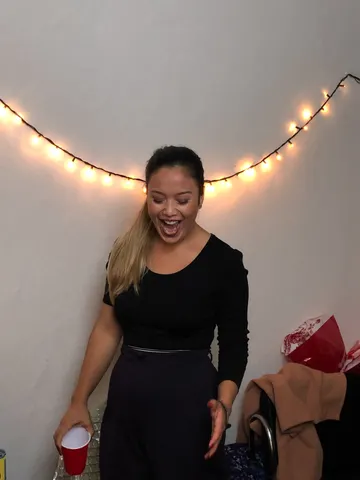
Clean up this uploaded photo by removing the loose party decorations cluttering the background — balloons, paper streamers, hanging banners, plastic cups, and gift wrap — so the space behind the subject looks tidy. Reconstruct the wall, floor, furniture, and shadows naturally wherever clutter is removed, matching the existing textures and light so no gaps or smudges are visible.

Keep the subject's face, body, pose, expression, and outfit exactly as they appear — do not alter identity, retouch skin, or change clothing. Preserve the original camera angle, framing, and lighting conditions; only the background decorations should be affected.

Do not smooth skin, do not add a plastic or airbrushed look, and keep the photo's natural grain, mild noise, and imperfections intact. This is a cleanup, not a re-edit of the person or the room's layout.

The final result should look like the same photo, taken in the same room, just without the party mess in the background — believable and unretouched, not a staged or empty room.
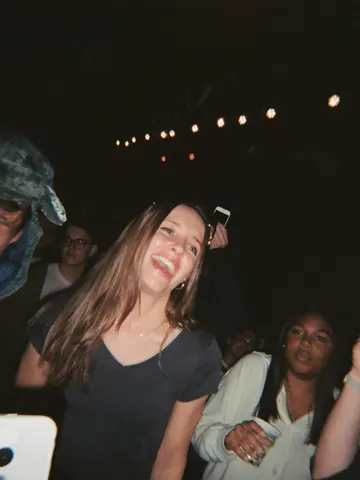
Fix the wrecked lighting in this uploaded photo. Concert and live-show shots taken on a phone almost always come out with a muddy color cast from the stage lights, crushed shadows, motion blur from the crowd swaying, and a grainy, noisy texture that hides the person's face. Correct the exposure and white balance so skin tones read true and natural again, sharpen the subject enough to be clearly recognizable, and calm the colored light wash into clean, separated hues instead of one bleeding blob of purple, red, or green.

Keep the subject's identity, pose, expression, and exact position in the frame completely unchanged — this is a lighting and clarity correction, not a re-pose or a re-composition. Preserve the venue, crowd, stage, and any visible performers or lighting rig exactly as they are; do not invent new background elements, signage, or people. Keep the framing and camera angle identical to the original.

Avoid over-smoothing skin or turning the photo into a flat, plastic-looking render — retain natural skin texture, fine grain, and a bit of realistic noise so it still reads as a real phone photo, not an airbrushed edit. Do not add lens flares, bloom, or any stylized cinematic color grade; the goal is clarity and accuracy, not a new look.

The final result should look like a sharp, true-color phone photo from the show — like it was actually shot on a better camera in better light, not edited.
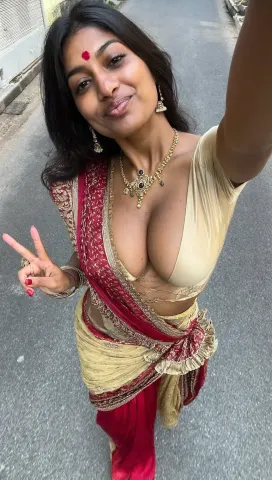
High-angle shot of a woman from the chest up, walking outdoors. The camera is looking down on her, capturing her upper body, one arm taking selfie, other hand showing peace sign below, and legs of a 27yo indian dark skinned woman walking down a city street, wearing a revealing Brahmin-style saree with a sleeveless blouse. The saree is crafted from transparent cotton, accentuating her hourglass figure and exposing her navel and hips. She is adorned with a bindi, intricate jewelry, including a prominent mangalsutra in her neck, and detailed accessories. her detailed skin textures especially in neck, arms, chest area, boobs, make the skin as detailed and realistic with realistic lighting reflections as possible. The saree features a ultra-deep cleavage, with the fabric draped low to reveal her ample cleavage and the top of her Huge boobs. The saree is crafted from a rich combination of velvet, damask, silk, brocade, fine lace, sheer fabric, and raw texture. It is adorned with intricate embroidery, gold thread stitching, and lace-up front accents. The design incorporates ruffled trim and a deep, plunging neckline, creating a seductive and provocative aesthetic reminiscent of a indian local prostitute. Her hair is styled traditionally, and the background is visible, Skin textures are detailed and realistic, with a straight face looking at the camera with no makeup, few post acne marks, pimple marks in her skin chest area, wearing a fully transparent dress, she has natural busty boobs exposed, (boobs:1.2), (big ass:1.5), Slim thick, slim waist, (huge thighs:1.3), ((make the photo realistic like it was shot on iPhone 16 Pro with realistic lightings, background))
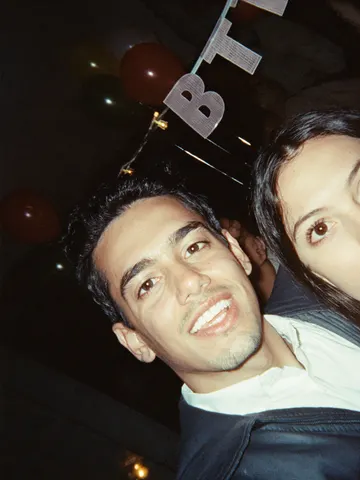
Remove the red-eye effect from this uploaded photo. Correct the pupils so they return to their natural dark color, matching the person's real eye tone and the photo's ambient lighting — no glowing red, orange, or artificial white circles left behind.

Keep the identity, facial features, expression, composition, and framing of this photo exactly unchanged. Do not alter the pose, skin tone, hairstyle, clothing, or background — this is a targeted eye-color correction, not a full retouch.

Preserve the original flash lighting, skin texture, and photo grain. Do not smooth the skin, do not add plastic or airbrushed texture, and do not introduce any new artifacts, blur, or warping around the eyes. The catchlight and natural eye shape should stay intact.

The final result should look like the same candid flash photo, except the eyes look naturally dark and lifelike instead of glowing red.
Remove every piece of confetti, streamers, and paper scatter from this uploaded photo. Look for confetti fragments resting on skin, hair, clothing, the floor, tables, and any other surface, and carefully erase them, reconstructing the surface underneath — skin texture, fabric weave, floor grain, tabletop finish — exactly as it would look without the confetti ever having landed there.

Keep the person's identity, facial features, expression, and pose completely unchanged. Preserve the original composition, camera angle, and framing exactly as shot. Do not alter the lighting, shadows, color temperature, or white balance of the scene — match the existing exposure so the cleanup is invisible.

Do not smooth or soften skin, do not add plastic or airbrushed texture anywhere in the image, and keep the natural photographic grain and noise level of the original photo intact. Avoid any warping, blurring, or duplicated background elements where the confetti used to be — the reconstructed areas should look like they were never disturbed.

The final result should look like the exact same photo, taken in the same moment, just without a single piece of confetti anywhere in frame.
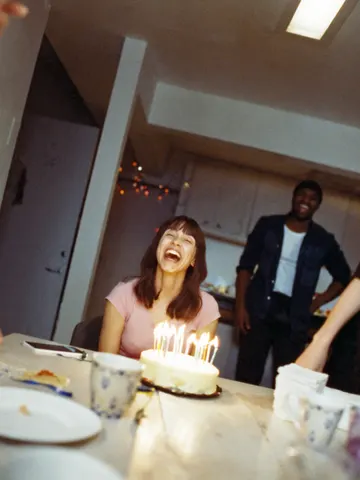
Correct the color cast on this uploaded photo. The image was shot under warm string lights or candlelight and everything — skin, walls, clothing, background — has picked up a heavy orange-yellow tint that makes it look dingy and off. Rebalance the white balance so skin tones read natural and true, whites and neutrals look actually white, and colors regain their real hue instead of being drowned in amber.

Keep the identity, expression, pose, and composition of the photo exactly as they are — do not reshape the face, change the outfit, or move anyone in the frame. Preserve the actual light sources (the string lights or candles can stay warm and glowing themselves), just stop that warmth from bleeding into everything else in the shot.

Do not smooth or soften skin, do not add plastic-looking texture, and keep the photo's natural grain and imperfections intact. This is a color correction, not a retouch — the goal is accurate color, not a filtered or airbrushed look.

The final result should look like the same party photo shot with proper white balance from the start — natural skin tones and true colors, with the festive lights still glowing warmly in the background exactly where they were.
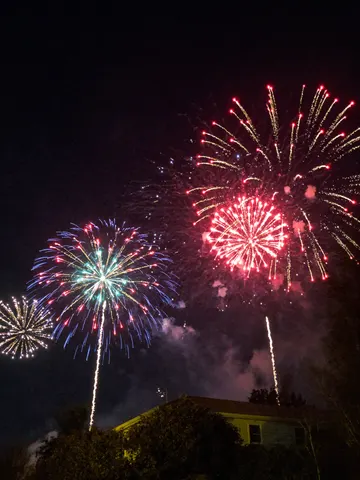
Fix this uploaded photo of a fireworks display. The fireworks came out dim, hazy, and smeared with motion blur — the bursts look like faint smudges of light lost in smoke and darkness instead of the crisp show you actually saw.

Sharpen every firework burst into crisp, well-defined trails and sparks, boost the color saturation of the burst colors, and clear away the haze and smoke so the night sky reads deep black instead of murky gray. Keep the composition, camera angle, and any visible skyline, crowd, or silhouettes exactly as they are — don't crop, don't add fireworks that weren't there, don't change what's actually in frame.

Preserve the photo's natural night-photography grain and any ambient light sources unchanged in position and color; avoid over-sharpening into a plastic or HDR-painted look, and don't smooth away the texture of smoke or clouds that are supposed to be there. This is a clarity and color correction, not a repaint.

The final result should look like the fireworks photo you meant to capture — crisp, vivid bursts against a clean night sky, exactly what your eyes saw in the moment.
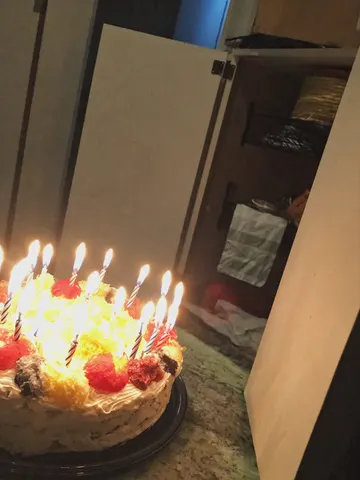
Remove the melted candle wax drips from this uploaded photo. Locate every trail of wax running down the side of the cake, pooling on the frosting, or hardened on the table or plate, and rebuild that area with smooth, undisturbed frosting or a clean surface that matches the surrounding texture, color, and lighting exactly.

Keep the cake's actual shape, layers, decorations, candles, and any writing or toppings completely unchanged — only the wax drips should disappear, not the cake itself. Preserve the composition, camera angle, and every other object in the frame precisely as it was.

Do not smooth, soften, or blur the frosting texture in the repaired areas — match the same slightly imperfect, hand-iced texture and lighting as the rest of the cake. Avoid any plastic or overly airbrushed look, keep natural grain and color variation intact, and make sure the fix is invisible rather than looking like a patch.

The final result should look like a beautifully clean cake photo, as if the candles were blown out before any wax ever had the chance to drip.